
UPnP: The “Friendly” Neighbor You Might Not Want
UPnP (Universal Plug and Play) is like that neighbor who walks into your house uninvited. Super helpful, but a little risky. It lets devices communicate with each other and open router ports automatically, making gaming, streaming, and smart home gadgets a breeze but at the same time can also add unwanted devices to your network and let for example it track other devices if they are discoverable.
The Upside:
- Plug-and-Play: Printers, consoles, and smart TVs just work.
- Automatic Port Forwarding: No manual setup for games or media servers.
- Smooth Streaming & Gaming: Reduces lag and keeps your devices in sync.
- Cross-Device Harmony: Works across brands thanks to standard protocols.
The Downside:
- Open Doors for Hackers: Any device can request access.
- IoT Weak Spots: Smart devices often have poor security and sometimes contain malicious scripts because resellers like Action don’t pay a fare price for it’s production.
- Invisible Risks: UPnP runs quietly, so you may not know what’s connected.
- Inconsistent Security: Not all devices handle it safely.
The Verdict: UPnP is convenient, but it’s a potential security nightmare.
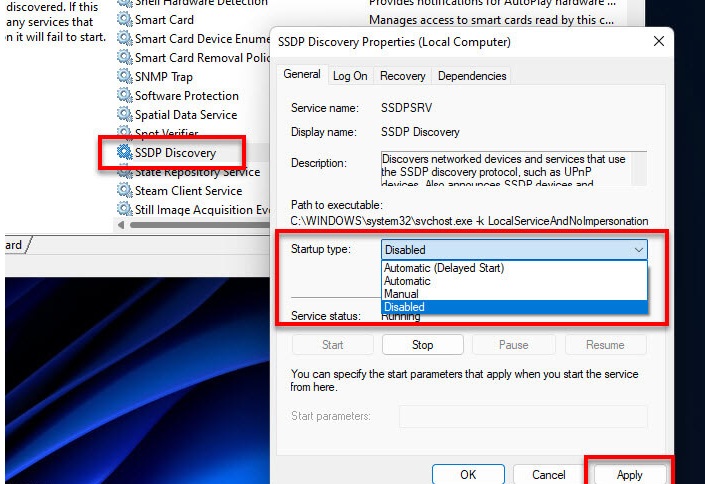
How to Kill UPnP on your Windows 11 computer
- Press Win + R, type
services.msc, hit OK. - Disable SSDP Discovery (stop it and set to Disabled).
This prevents other devices to “discover” your device once someone
added their “smart wifi LED light” to your network. - Disable UPnP Device Host (stop it and set to Disabled).
- Done.
Extra Security: Turn It Off on Your Router
- Log in via browser (
192.168.0.1or192.168.1.1). - Find UPnP (often under Advanced → NAT Forwarding).
- Toggle it Off and save.
- Optional: restart your router.
Now your network is safer. Need a port? Forward it manually.
Pro Tip: NAT-PMP is a slightly safer alternative, but both trust your devices—if malware sneaks in, it can punch holes in your firewall.
Best practice: disable automatic protocols and manually manage ports when needed.
The best is give any device access to your network with their MAC-address and don’t give them full upload/download/discovery rights within your network but for this you’ll need admin rights of the network.




Geef een reactie