
Group Policy Objects (GPO): A Practical Guide
A clear introduction to the Group Policy Management Console, GPO targeting, reporting, backups and a safer way to test policy changes before they reach production.
What is Group Policy?
Group Policy is a Windows feature administrators use to centrally manage settings for users and computers in an Active Directory environment. A Group Policy Object (GPO) is a collection of policy settings that can be linked to an Active Directory site, domain or Organizational Unit (OU).
1. Group Policy Management Console (GPMC)
The Group Policy Management Console (GPMC) is the central graphical interface for creating, editing, linking, reporting on, backing up and restoring GPOs.
Open it from Server Manager → Tools → Group Policy Management, or run gpmc.msc.
Group Policy Objects
Contains the GPOs created in the domain. A GPO is stored in the domain and can be linked to one or more sites, domains or OUs.
WMI Filters
Uses Windows Management Instrumentation queries to target a GPO based on properties of the destination computer.
Group Policy Results
Shows the policy settings actually applied to a selected user and computer. Useful for troubleshooting.
Group Policy Modeling
Simulates the likely effect of policy deployment before you make a change. Useful for planning and testing.
2. Active Directory containers and OUs
GPO links can be attached to three Active Directory locations: sites, domains and Organizational Units (OUs). The default Users and Computers containers are not OUs, so you cannot link a GPO directly to those containers.
| Active Directory location | Can link a GPO? |
|---|---|
| Site | ✓ Yes |
| Domain | ✓ Yes |
| Organizational Unit (OU) | ✓ Yes |
| Default Users container | ✕ No |
| Default Computers container | ✕ No |
Best practice: Organize users and computers into OUs so that you can target policies more precisely.
Example only: a dedicated Test OU gives you a controlled place to link a test GPO without changing the production OU’s links.
3. Default Group Policy Objects
| Default GPO | Linked to | Typical scope |
|---|---|---|
| Default Domain Policy | Domain root | Domain-wide policy settings, commonly including account and password policies. |
| Default Domain Controllers Policy | Domain Controllers OU | Policy settings for domain controllers. |
Keep the default GPOs focused on their intended roles. For other requirements, create separate, clearly named GPOs and link them where they are needed.
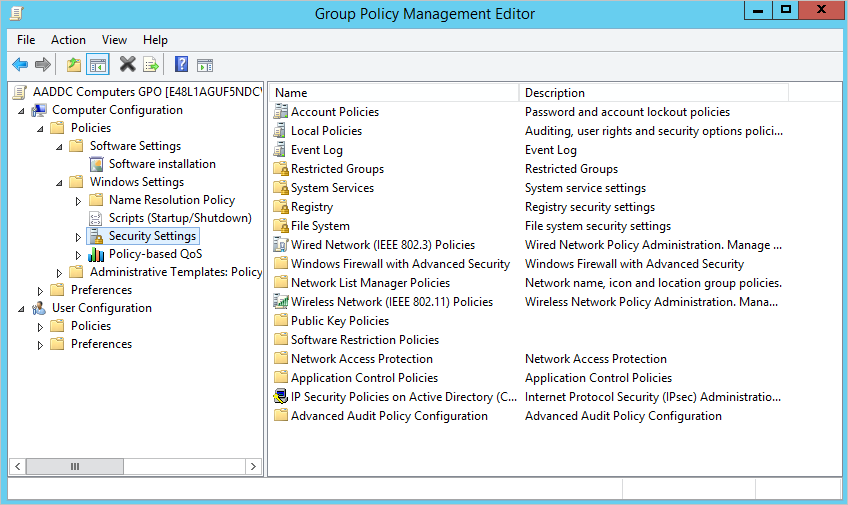
4. Editing a GPO
- Open GPMC and expand your forest and domain.
- Expand Group Policy Objects.
- Right-click the GPO and select Edit.
- Navigate through the policy tree and open the setting you want to configure.
💻 Computer Configuration
Settings that apply to computers, regardless of which user signs in (subject to policy processing and filtering).
👤 User Configuration
Settings that apply to users, subject to policy processing and filtering.
Both sections contain Policies and Preferences. Policies enforce or control Windows configuration. Preferences provide configurable settings that generally allow more flexibility.
Example: Account Lockout Policy
Computer Configuration → Policies → Windows Settings → Security Settings → Account Policies → Account Lockout PolicyIn the settings list, the policy name identifies the setting and the policy setting column shows its current configuration. Not Defined means that this GPO does not configure that setting.
Many policy property windows include an Explain tab. Read it before changing an unfamiliar setting: it describes the setting, its behavior and, where applicable, default behavior.
5. Back up and restore a GPO
Back up a GPO
- In GPMC, expand Group Policy Objects.
- Right-click the GPO and choose Back Up.
- Choose a backup folder and add a useful description.
- Complete the wizard and verify that the backup succeeded.
Restore a GPO
- Right-click the GPO in GPMC and choose Restore from Backup.
- Select the backup folder and the required backup version.
- Review the selection and finish the restore wizard.
6. Test changes before production
When you click Apply or OK in the Group Policy Management Editor, the change is saved to the GPO. It is not necessarily applied to every client immediately; clients process policy during startup, sign-in and background refresh, or when a refresh is requested.
- Create a test OU. For example, create
Finance → Computers → Test. - Copy the production GPO. In GPMC, right-click the original GPO, choose Copy, then paste it under Group Policy Objects.
- Rename the copy. For example,
Test Example Policy. - Edit the copied GPO. Make the intended changes in the test copy, not in the production GPO.
- Link it to the test OU. Right-click the Test OU, select Link an Existing GPO, and choose the test GPO.
- Test and verify. Check the behavior on test computers and review the applied policy with Group Policy Results or
gpresult. - Deploy deliberately. After approval, transfer the tested settings using the appropriate GPMC import or change-management process. Back up the destination GPO first.
This creates an isolated place to test additional settings. Remember that linked policies, inheritance, security filtering and WMI filters still affect the final result, so verify the effective policy rather than assuming the test GPO acts alone.
7. Useful commands
gpmc.mscOpen Group Policy Management Console.gpedit.mscOpen the Local Group Policy Editor.gpupdate /forceRequest a refresh of computer and user Group Policy.gpresult /rDisplay a summary of applied Group Policy.gpresult /h report.htmlSave a detailed HTML policy report.rsop.mscOpen the Resultant Set of Policy snap-in.gpmc.msc is used to manage domain Group Policy. gpedit.msc edits local policy on an individual computer; it is not a replacement for GPMC.8. Advanced Group Policy Management (AGPM)
Some organizations use Advanced Group Policy Management (AGPM), an additional Microsoft management component historically associated with the Microsoft Desktop Optimization Pack (MDOP). It adds workflow and change-control capabilities such as version history, offline editing and approval processes.
AGPM is not required for everyday GPO administration. Check current Microsoft support, licensing and organizational standards before planning a deployment.
9. Quick revision: 10 key takeaways
- GPMC is the main console for managing domain GPOs.
- WMI filters can target GPOs based on computer properties.
- Group Policy Results shows what is actually applied.
- Group Policy Modeling simulates a planned scenario.
- GPOs link to sites, domains and OUs—not the default Users or Computers containers.
- A new AD domain includes two default GPOs.
- GPOs contain Computer Configuration and User Configuration.
- Not Defined means that GPO does not configure that setting.
- Back up a GPO before modifying it.
- Test changes on a controlled test OU and test machines before production.
10. Official documentation and further reading
- Group Policy Management Console (GPMC) — manage GPOs, links, reports and filtering.
- Group Policy Modeling and Group Policy Results — understand simulated versus actual policy results.
- Back up, restore, migrate and copy Group Policy Objects — backup, restore, copy and import workflows.
- Group Policy processing — filtering, WMI and policy processing behavior.
gpresultcommand reference — command-line reporting for Resultant Set of Policy.
About this article
This article is an independently written learning summary based on a training transcript and checked against the Microsoft Learn documentation linked above. ChatGPT was used as an AI-assisted drafting and formatting tool. Google Search may be used to discover resources, but it is a search engine rather than the technical source; factual claims should be attributed to the original documentation, such as Microsoft Learn.
Always validate Group Policy changes in a lab or test OU and follow your organization’s change-management process before applying them in production.